Checking the Calendar
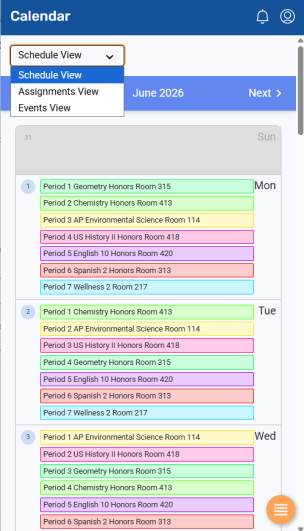
In Aspen Go, check your or your student's Calendar for an overall view of the class and assignment load. There are three views available.
To view the Calendar:
-
Log on to Aspen Go.
-
Tap Calendar. The Calendar screen defaults to Schedule View, which displays the student's classes for the selected month. Tap Previous or Next to view a different month:
-
Do one of the following:
-
To view assignments, select Assignments View. The screen displays the student's assignments for every class. To view assignments for a specific class section, tap All Courses.
-
To view events, select Events View. This displays district, school, and extracurricular events.
-
|
Note: If you are a parent with more than one Aspen student, select the student you want to view from the drop-down at the top of the screen. |